
Synchronizing files between your laptop, phone, PC, and perhaps even your home PC. It’s almost unthinkable that we can do without it. The “New Way of Working” has many advantages for all of us.
WHY DO THIS YOURSELF? DROPBOX WORKS FINE, RIGHT?
Yes, Dropbox usually works fine. However, sync apps can sometimes go offline, and you’re always bound by the Terms of Service (ToS). If it works, you won’t notice that it could be better. If it goes wrong, you’ll feel a loss of control over your own files. What does Dropbox do with your files, for example? And what they’re not doing now could easily happen next week with a change to the ToS. Not to mention password leaks… That’s a real nightmare for affected users without multifactor authentication.

OKAY, WHAT SHOULD I IMAGINE AS AN ALTERNATIVE?
Leaving your work at work? Hmm, that’s probably not going to happen because of the New Way of Working (NWW). The New Way of Working means you can work flexibly, from home, or simply wherever you want, with the main advantage having access to the information you need anytime, anywhere.
Several alternative tools are available, each requiring a different level of expertise and application. GoodSync, for example, syncs your files via SFTP (an encrypted version of FTP). With a few clicks, you can define a sync agent between your host folder and a remote folder. A nice feature of GoodSync is that you can see the differences between the two folders at a glance. A disadvantage of GoodSync is that it can be complex to install/configure, as well as use.
Another app, SparkleShare, can be described as a true Dropbox clone. It creates a folder on your PC where you can make (remote) changes, and which are automatically synced. The changes are also monitored and tracked, and last but not least, all data is encrypted. Creating a host does require some knowledge of Git. However, their wiki explains how to set up the host with Git well.

YOUR OWN RASPBERRY PI AS A CLOUD SERVICE
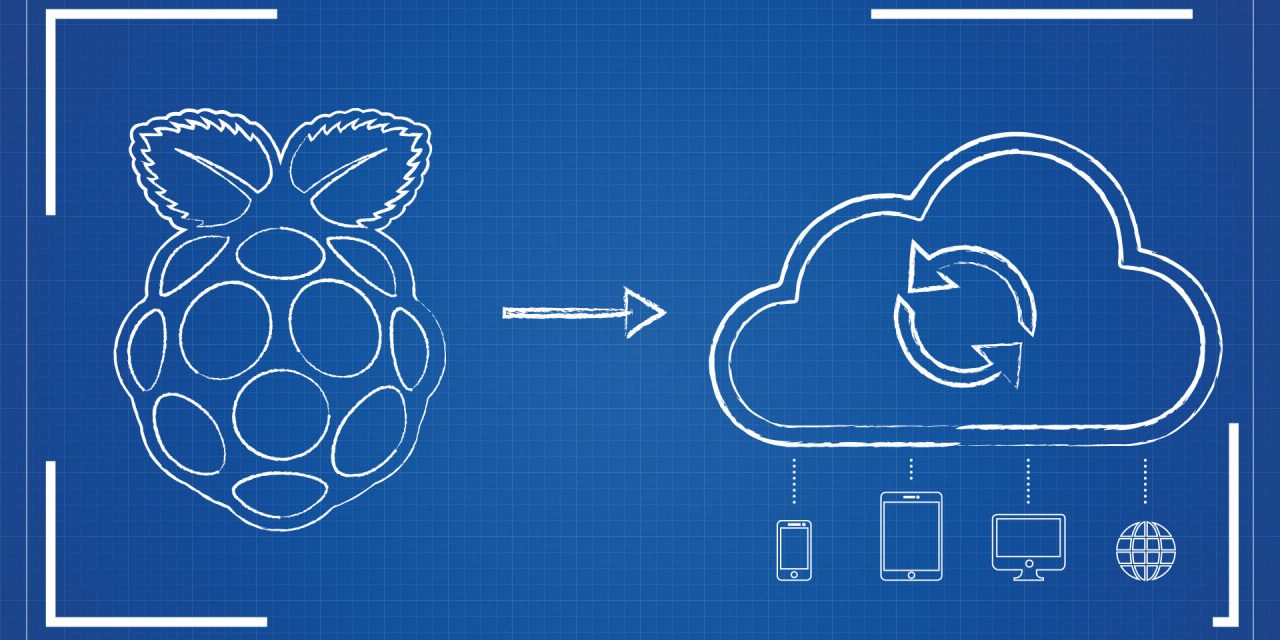
With improvements in new versions of the Raspberry Pi, its usability continues to expand. It’s private (self-hosted), secure (if implemented properly), and unlimited—the size of your own connected hard drive is the limit.
Here’s how: connect the Pi to an external hard drive and put the whole thing in a nice box (with holes for airflow!). Setting up the network and cloud service can be complicated, especially for non-IT professionals. First, you need to assign a static IP address, then install and configure the Apache web server, including SSL for secure logins. After that, you need to download and set up the application for the cloud service: “Own Cloud.” A step-by-step guide can be found here. For convenience, the author of the Instructable has created a file that can be copied to an SD card, which you use to boot the Pi. This skips many of the technical steps.
After setting up access to your own cloud storage location and defining your username and password, you’re done. Thanks to Instructables user koff1979.
Conclusion
If you don’t want to be dependent on the whims of large cloud sync applications and would rather have control over your files yourself, in a way that you know is more secure than the established applications, then rest assured: it’s all at your fingertips.
NB: We have no interest in the organizations or products mentioned. We’re just geeks.
Links
- More DIY? Check http://www.instructables.com/
- More Raspberry Pi? Check https://www.raspberrypi.org/